


About the source format (JPEG)
JPEG commonly uses lossy compression. Converting it to a lossless format does not restore image detail that was already lost.
ImgParser helps you convert your files from one type to another, select the current type of your file and then select the type you want to change it to.
Select the JPEG file you want to convert from your device. You can drag it to the upload area or click to choose it.
After selecting your image, choose "GIF" as the output format. The best format depends on how you plan to use the image.
Click the convert button and wait a few seconds for the processing to complete in your browser. Then click the download button to save your new GIF file. Since everything stays on your device, your file is only available from this browser and this tab.
JPEG commonly uses lossy compression. Converting it to a lossless format does not restore image detail that was already lost.
GIF is limited to a palette of up to 256 colors. ImgParser removes transparency and uses a white background for GIF output.
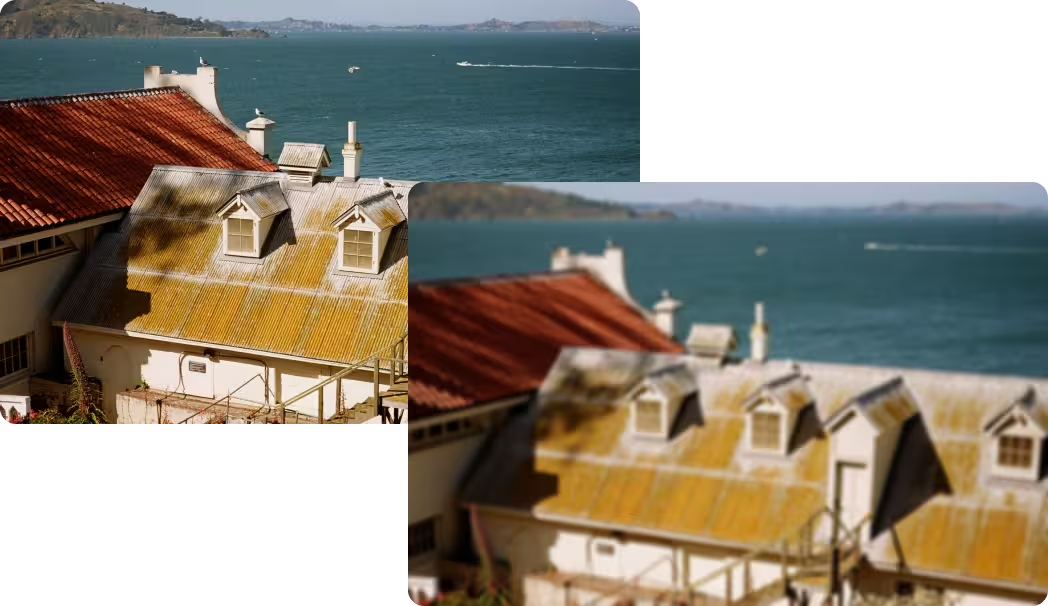
Apply the blur effect to your JPEG image to soften its appearance or blur specific parts before converting or downloading it.
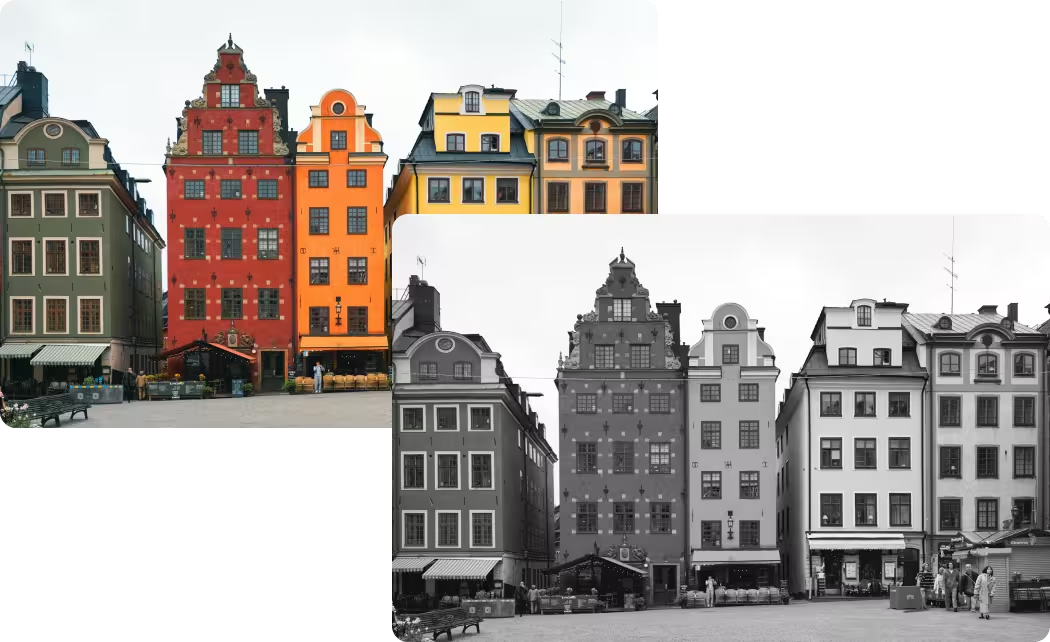
Convert your JPEG image to grayscale, removing all colors and leaving only shades from white to black. This process transforms the image into a monochromatic version, based solely on the light intensity of each pixel.
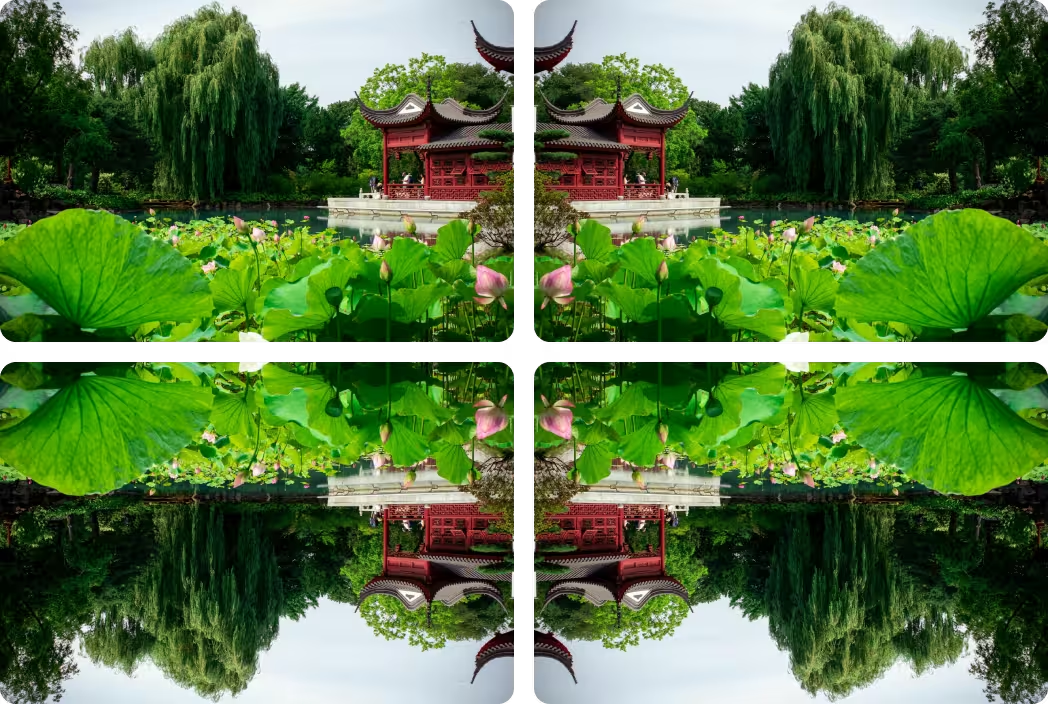
The flip and flop effects allow you to flip a JPEG image as if you were reflecting it in a mirror. It's a quick way to change the visual orientation without altering its content.
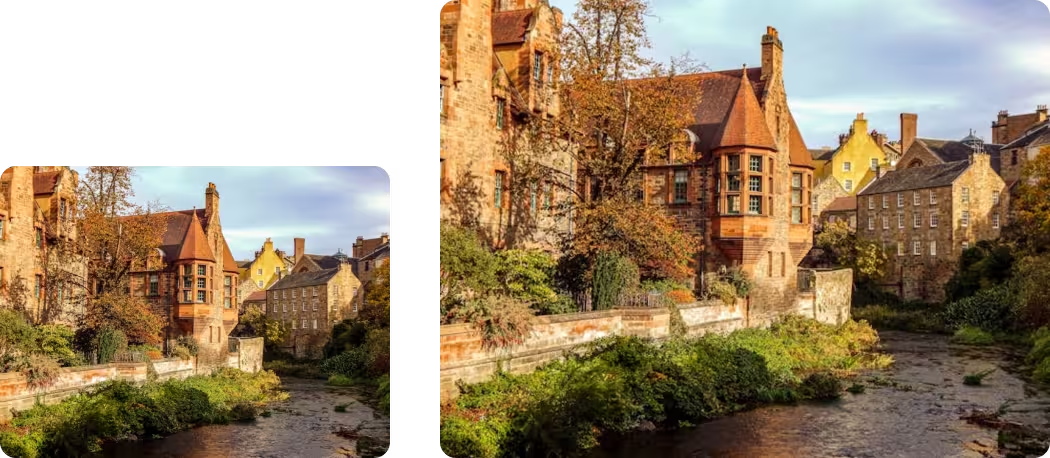
The resize function allows you to change the size of a JPEG image, either by reducing or enlarging it, adjusting its dimensions (width and height) without modifying its visual content.
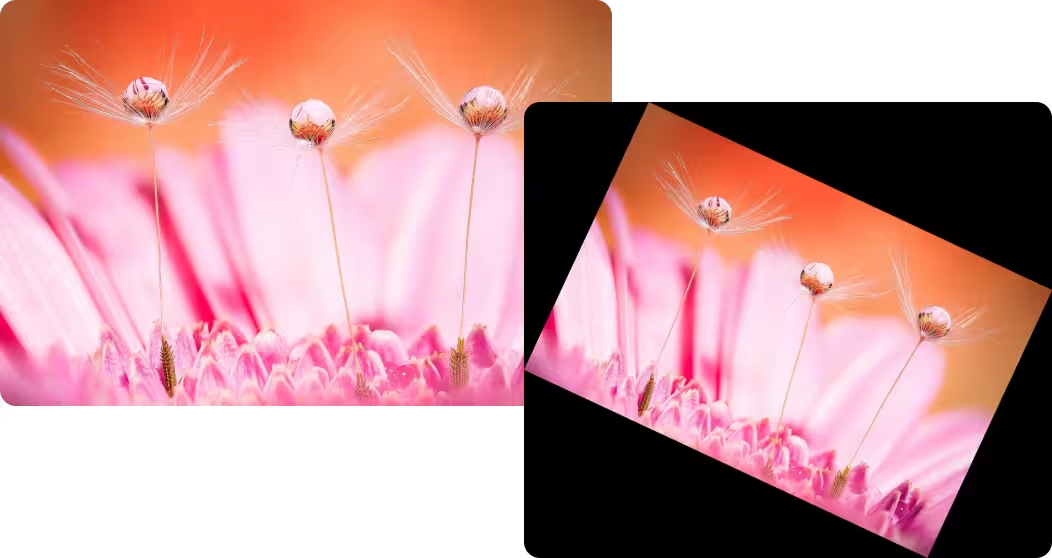
The rotate function allows you to rotate a JPEG image to any angle you want, whether 90°, 180°, 270°, or a custom degree. It's a useful tool for correcting orientation or creating visual effects.


